SAP PowerDesigner to erwin DM Migration
As SAP PowerDesigner approaches end of life, you need a scalable, efficient path to migrate your existing data models to a modern, fully supported data modeling platform. erwin Data Modeler (erwin DM) provides bulk migration capabilities through the erwin DM API (erwinDMAPI.exe), enabling you to migrate large volumes of SAP PowerDesigner models while preserving model structure, metadata, relationships, and business rules.
Unlike the one-at-a-time approach, the erwin DM API is designed for enterprise-scale migration initiatives that involve dozens, hundreds, or even thousands of models. This approach helps accelerate migration projects, reduce manual effort, and establish a repeatable process for large-scale model conversion.
The migration framework supports commonly used SAP PowerDesigner model types mentioned in the following table and converts them into erwin DM for further refinement, governance, and ongoing management.
| Model Type | Purpose |
|---|---|
| Conceptual Models (CDM) | High-level business view of organizational data |
| Logical Models (LDM) | Technology-independent representation of data structures |
| Physical Models (PDM) | Database-specific implementation models |
PowerDesigner commonly stores these models in .cdm, .ldm, and .pdm formats, along with language-specific variants.
The migration process is designed to preserve critical model information, including:
-
Entities and tables
-
Attributes and columns
-
Data types
-
Relationships
-
Primary keys
-
Foreign keys
-
Constraints
-
Business metadata
-
Model hierarchies
Except for the following terms, the migration maintains consistent terms in models migrated to erwin DM:
|
Term in SAP PowerDesigner |
Term in erwin DM |
|---|---|
| Extended Attributes | User Defined Properties (UDP) |
| Stereotypes | User Defined Properties (UDP) |
Key Benefits:
-
Faster Migration Execution: Convert large numbers of models in a structured and repeatable manner, reducing the time required for migration projects.
-
Reduced Manual Effort: Automate repetitive migration activities that would otherwise require manual processing of individual files.
-
Improved Consistency: Apply the same migration process across all models, helping ensure consistent conversion outcomes.
-
Enterprise Scalability: Support migration initiatives that span multiple business units, departments, or entire organizations.
-
Modernization Readiness: Move data assets into a modern, supported modeling environment that can support governance, collaboration, and future data initiatives.
Use the following table to decide the migration method:
| Scenario | Recommended Approach | Why |
|---|---|---|
| Migrating a handful of models for evaluation | UI-based migration | Quick validation with minimal setup |
| Migrating dozens of models from a business unit | Bulk Migration API | Reduces repetitive processing |
| Migrating hundreds of models across the enterprise | Bulk Migration API | Improves scalability and consistency |
| Repeating migrations during a phased rollout | Bulk Migration API | Supports automation and repeatability |
| Modernization program replacing SAP PowerDesigner organization-wide | Bulk Migration API with PSO support | Provides a structured enterprise migration path |
Preparing for Migration
erwin DM ships with a command-line utility, erwinDMAPI.exe, that converts PowerDesigner model files (.cdm, .ldm, and .pdm) into native erwin models (.erwin) in a single batch operation. The utility uses the embedded MITI/MIMB metadata bridge to:
-
Read each PowerDesigner file in a source folder
-
Extract entities, attributes, data types, comments, and relationships
-
Resolve and synchronize shortcuts (cross-model references)
-
Write a native .erwin model for each source file
Before you start, confirm the following requirements.
|
Requirement |
Detail |
|---|---|
|
erwin DM is installed |
Default path: C:\Program Files\erwin\Data Modeler r10 |
|
erwinDMAPI.exe is available |
Located in the erwin DM installation directory |
|
Source models are exported |
SAP PowerDesigner models saved as .cdm, .ldm, or .pdm files |
|
Source folder is accessible |
All source files placed in one folder. For example, if you are migrating logical models, C:\PowerDesigner\logical |
|
Permissions are granted |
Run PowerShell as an administrator, with write access to the source folder |
Migrating Models in Bulk
This section walks you through the migration process with logical models as an example. Follow the same approach for other model types.
To migrate logical models (.ldm) in bulk, follow these steps:
-
Place all SAP PowerDesigner logical models you want to migrate in a single folder.
In this example, C:\PowerDesigner\logical contains two source files, Erwin Test Model.ldm and Erwin Test Model Shortcut.ldm.

-
Open Windows PowerShell as an administrator and run the following command to change to the erwin DM installation directory.
cd "C:\Program Files\erwin\Data Modeler r10"
-
Run the following command to confirm that the erwinDMAPI.exe file is available.
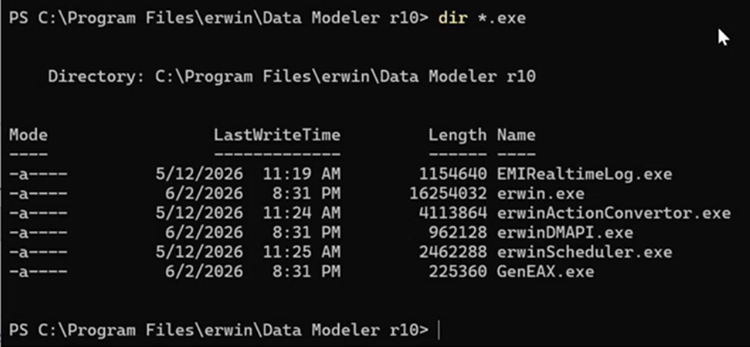
dir *.exe
erwinDMAPI.exe appears in the listing alongside erwin.exe and the other executables.
-
Run erwinDMAPI.exe with the -MitiLoad switch, point it at the source folder, and add -ldm to indicate PowerDesigner logical models using the following command:
.\erwinDMAPI.exe -MitiLoad C:\PowerDesigner\logical -ldm
Argument
Meaning
-MitiLoad <folder>
Runs the MITI bridge against every model file in <folder>
-ldm
Treats the source files as PowerDesigner logical models (.ldm)
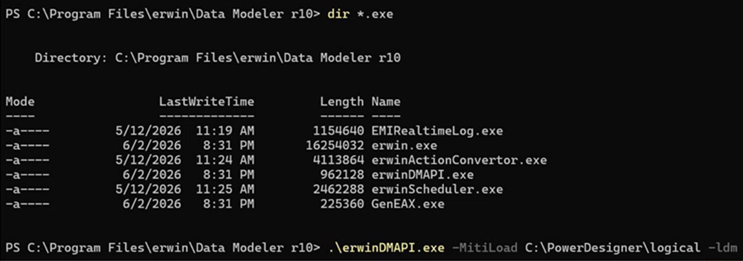
The utility processes each model in sequence (Processing (1/2), Processing (2/2), and so on). For every file, it:
-
Extracts data types and comments
-
Pre-processes shortcuts
-
Converts the model to an intermediate .xml file through the MIMB bridge
-
Imports the XML and writes a native .erwin file
-
Post-processes the model and injects or synchronizes shortcuts
A brief Creating model dialog appears while each model is built.
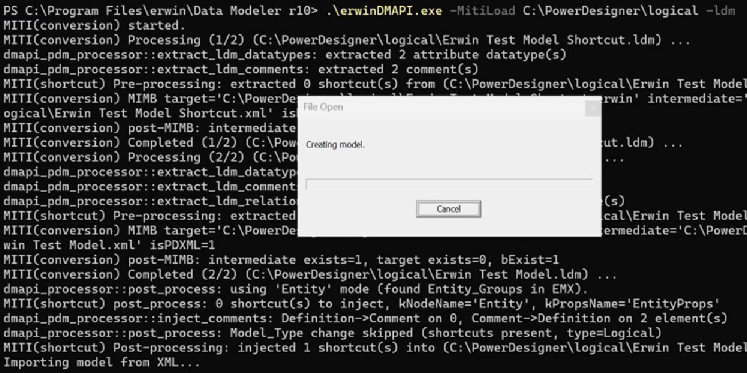
When the process ends, the utility displays a message, MITI (conversion) ended.
-
-
Run the following command to verify the exit code.
echo $LASTEXITCODE
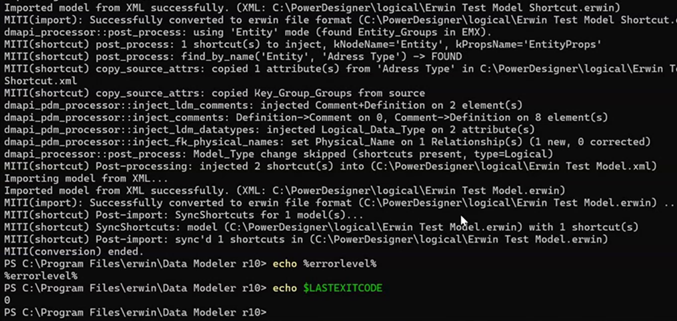
A value of 0 indicates success.
-
Navigate to the source folder and review the generated files.
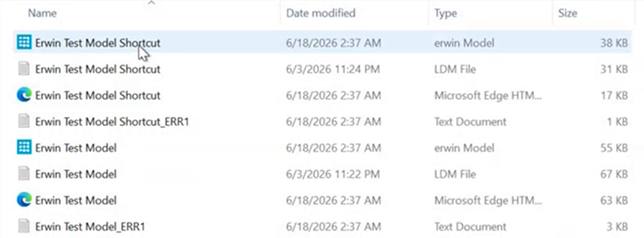
For each PowerDesigner model, the utility produces the following files.
File
Purpose
<Model>.erwin
The migrated native erwin model, your deliverable
<Model>.xml
Intermediate MIMB conversion file, safe to archive or delete
<Model>_ERR1.txt
Per-model conversion log, review it for warnings and errors
Always open the _ERR1.txt logs to check for objects that were skipped, remapped, or flagged during conversion.
-
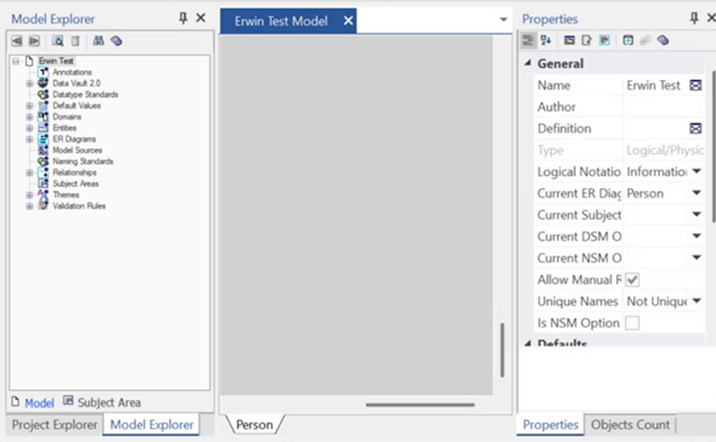
Open each generated .erwin file in erwin DM and confirm that the model migrated correctly.
In Model Explorer, confirm that objects such as entities, domains, relationships, and subject areas are populated.
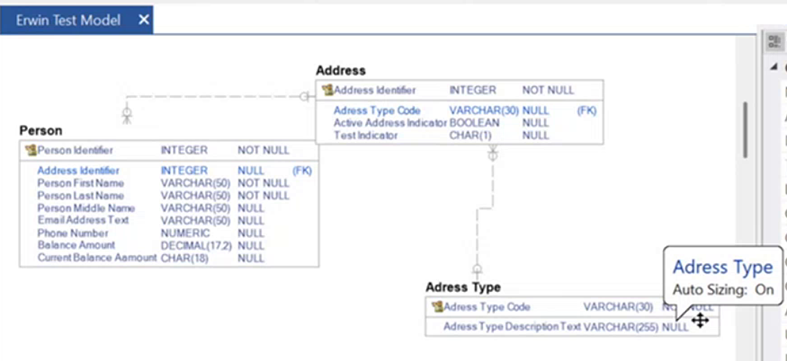
Open the ER diagram and verify that entities, attributes, keys, and relationships match the original PowerDesigner design.
Once all your migrated models are verified, you can start working on them in erwin DM. This completes the SAP PowerDesigner to erwin DM bulk model migration process.
Model Shortcut Synchronization
SAP PowerDesigner models often use shortcuts that are references to objects that are available in other models. During conversion, the migration process runs a SyncShortcuts step to re-link these references across the migrated models. If a shortcut cannot be resolved, the log reports an error similar to the following:
MITI(shortcut) SyncShortcut: Exception in sync shortcut 'Address Type':
Persistence Units Component ! Failed to access a file ... Access denied.
To resolve the error, follow these steps:
-
Ensure all related models, both the shortcut source and target, are in the same -MitiLoad folder so that references can be resolved.
-
Confirm that no target .erwin file is open or locked, and that you have write access to the folder.
-
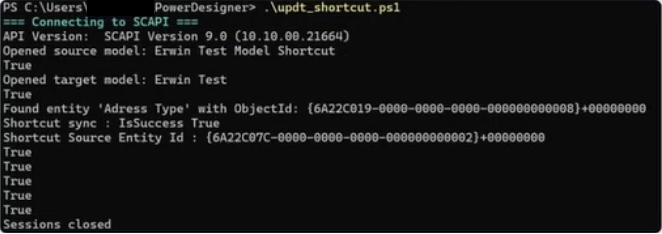
If a shortcut still fails to sync, use the erwin SCAPI scripting API to update the shortcut's source-model property and re-run the sync.
-
After you update the shortcut source model, the sync completes successfully and reports IsSuccess: True.
Best Practices
To get the best results from the migration process, follow these practices:
| Recommendation | Benefit |
|---|---|
| Start with a pilot migration | Identify issues before large-scale execution |
| Migrate in phases | Simplifies validation and issue resolution |
| Maintain migration logs | Improves traceability and troubleshooting |
| Validate after each batch | Prevents issues from accumulating |
| Prioritize critical models first | Delivers business value early |
| Establish governance standards after migration | Improves long-term model quality |